 Gardion
Samsung · One UI
Samsung saves battery at the cost of your controls
By default One UI limits background work, and after a few months it revokes permissions from apps it considers unused. Parental controls die quietly from both — no errors, no notifications. Three settings below undo it, verified on a real Galaxy Tab S6 in both the Russian and the English interface.

Is this your case?
- The parent dashboard shows the device offline while the child is holding the tablet.
- Daily screen time looks suspiciously small after a whole evening of use.
- The controls worked for months, then the reports quietly stopped.
Three settings, in order
- 1
Set battery to “Unrestricted”
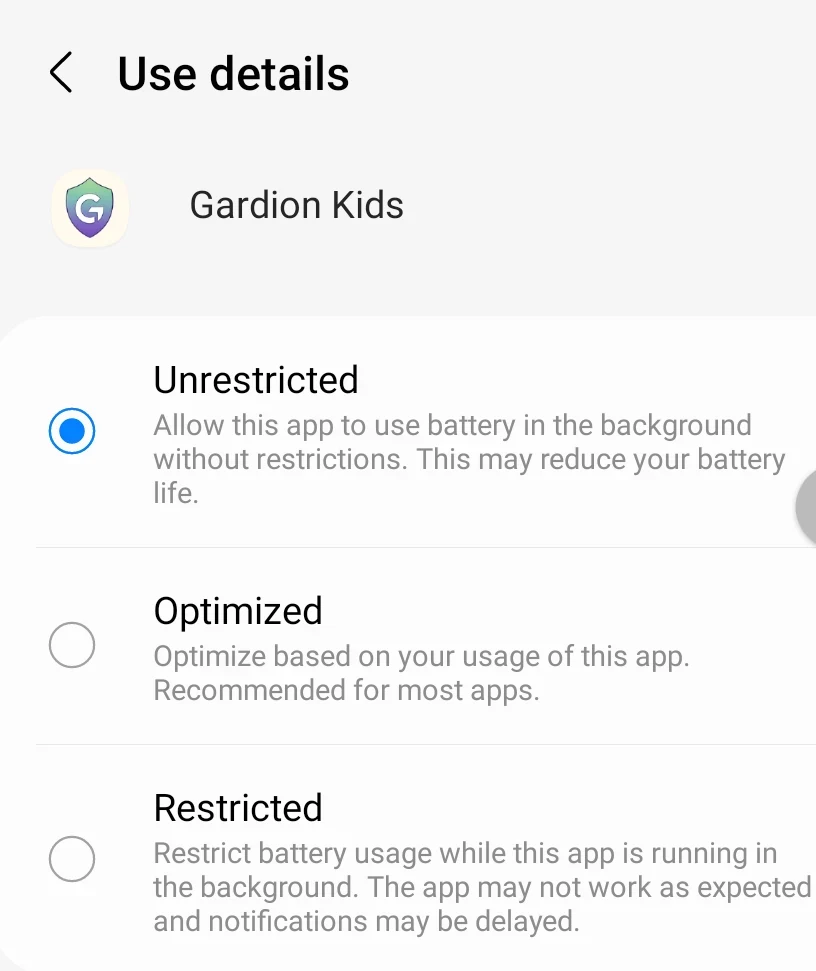
Settings → Apps → Gardion Kids → “Battery”.
There are three modes: Unrestricted, Optimised and Restricted, and the factory default is the middle one — the system decides when to close the app. The controls need the top one: the time counter then keeps running after the child swipes the app away.

A real screen, not a mockup - 2
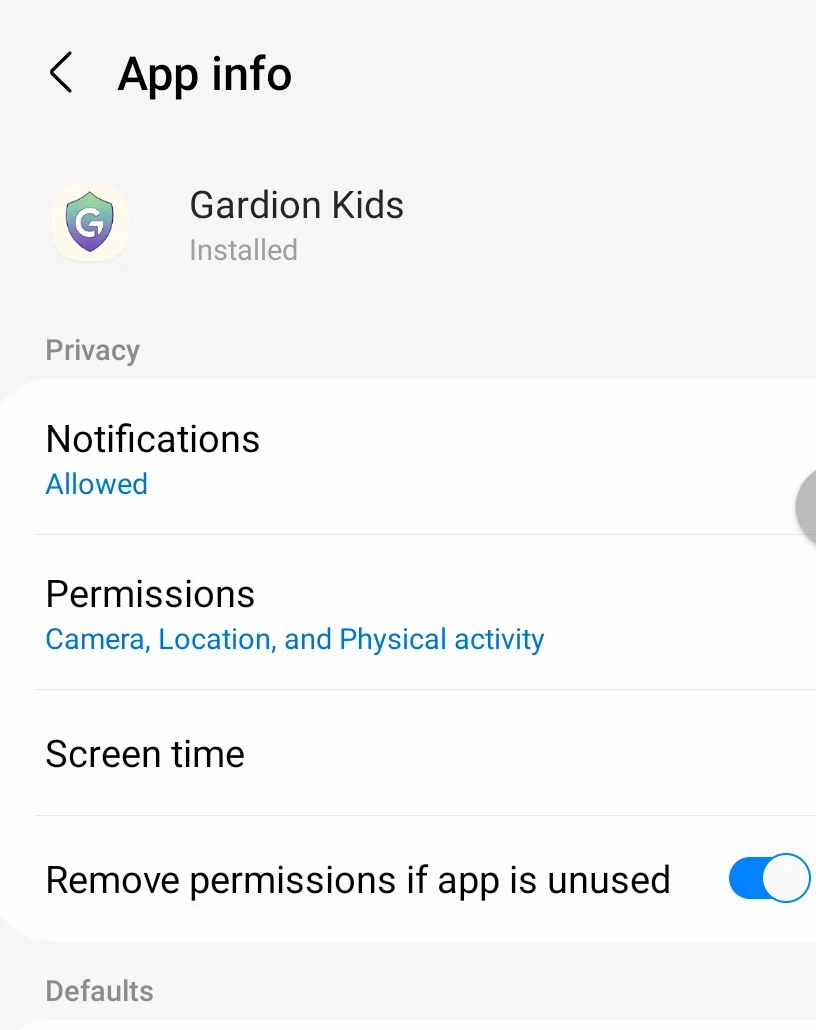
Turn off “Remove permissions if app is unused”
The same app info screen, a little lower.
The switch ships enabled for every app and is meant for programs you abandoned. A parent doesn’t open the child app for weeks — to One UI it looks unused, and after a few months Android quietly takes its permissions away. Turn the switch off by hand.

A real screen, not a mockup - 3
Check “Appear on top”
Same place, in the app’s permission list.
The break screen is drawn over the game, and without this permission the child never sees it: the limit fires, the game simply carries on.
Gardion walks you to these screens itself
On first launch Gardion Kids shows which switch is needed and opens the right One UI screen with a button, so you don’t have to hunt through the menus.

How to tell it worked
- Reboot the child’s device. Within a minute it should be back online in the parent dashboard.
- Open an app that has a limit on it. The break screen should appear on top of it.
Questions parents ask
It can put the battery back to Optimised. Checking takes a minute — the same two screens from steps 1 and 2.
Partly: the app battery mode lives separately from the general power saving, so step 1 is still needed.
Yes, if they know the path. Gardion Kids settings sit behind a parent PIN, but One UI screens are part of Android. The one sign of tampering: the device stops reporting in the parent dashboard.
The problem there is different — autostart and unloading from memory. They have their own walkthrough with five EMUI switches.
Set it up on your child’s Samsung
14 days of full access, no card needed. Android and Windows.
Try Gardion