 Gardion
step-by-step guide
Set up your first protection in one clear path
First install Gardion Family on the parent’s device. Then connect Gardion Kids on the child’s phone or tablet and enable only the permissions you need.
Where to get the parent app
Gardion is still in closed testing on Google Play, so you will not find it by searching the store. Install it from the file below.
The file is signed with the Google Play key, so the store can update the app later on.
What you need
- An Android phone for the parent, for Gardion Family. A browser on a computer works too.
- A separate Android phone or tablet for the child, for Gardion Kids.
- Access to the child’s phone: some Android permissions can only be granted on the device itself.
Install Gardion Family on the parent’s phone
Download the APK linked above and open it. In Gardion Family, create an account or sign in. If you would rather not install anything, open the parent dashboard in a browser.
Download Gardion Family for Android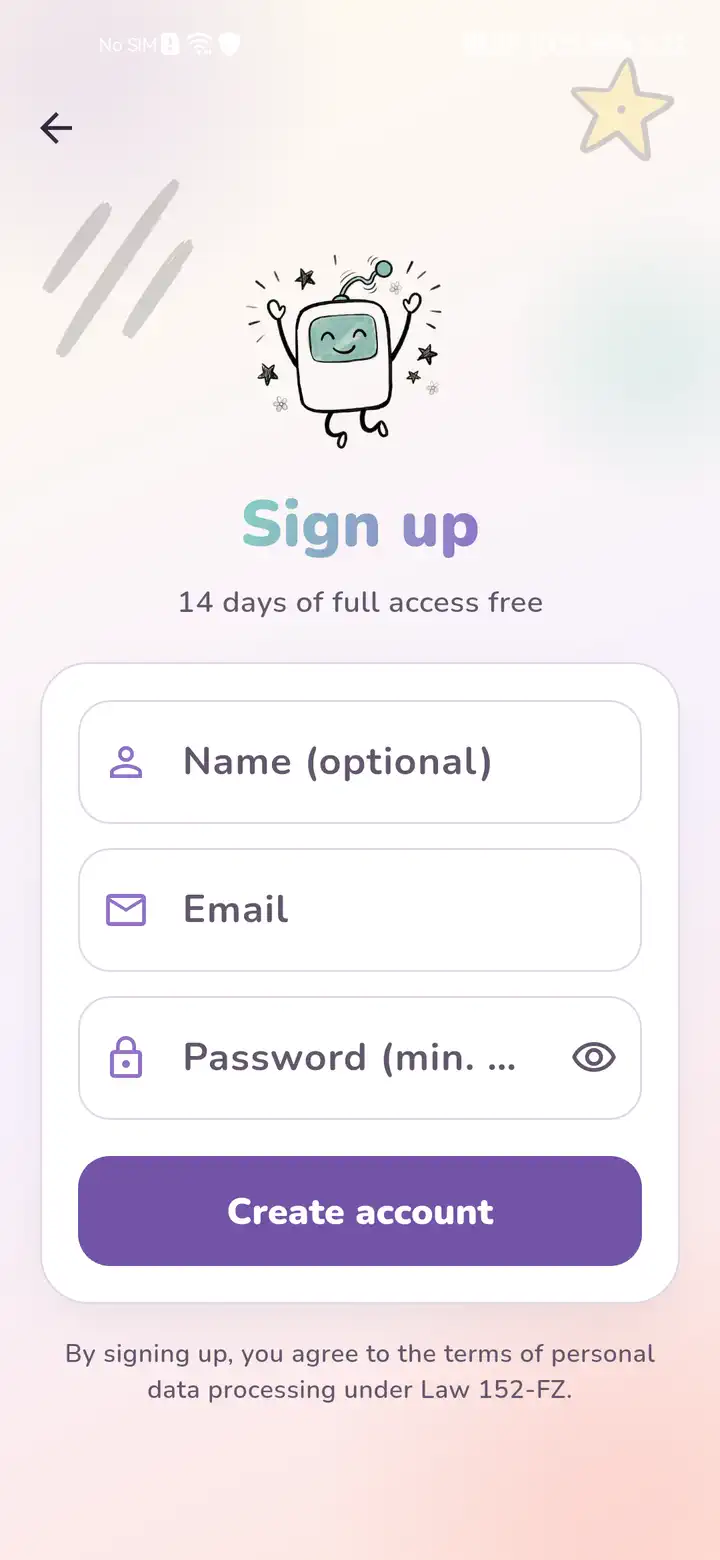
Connect the child’s device
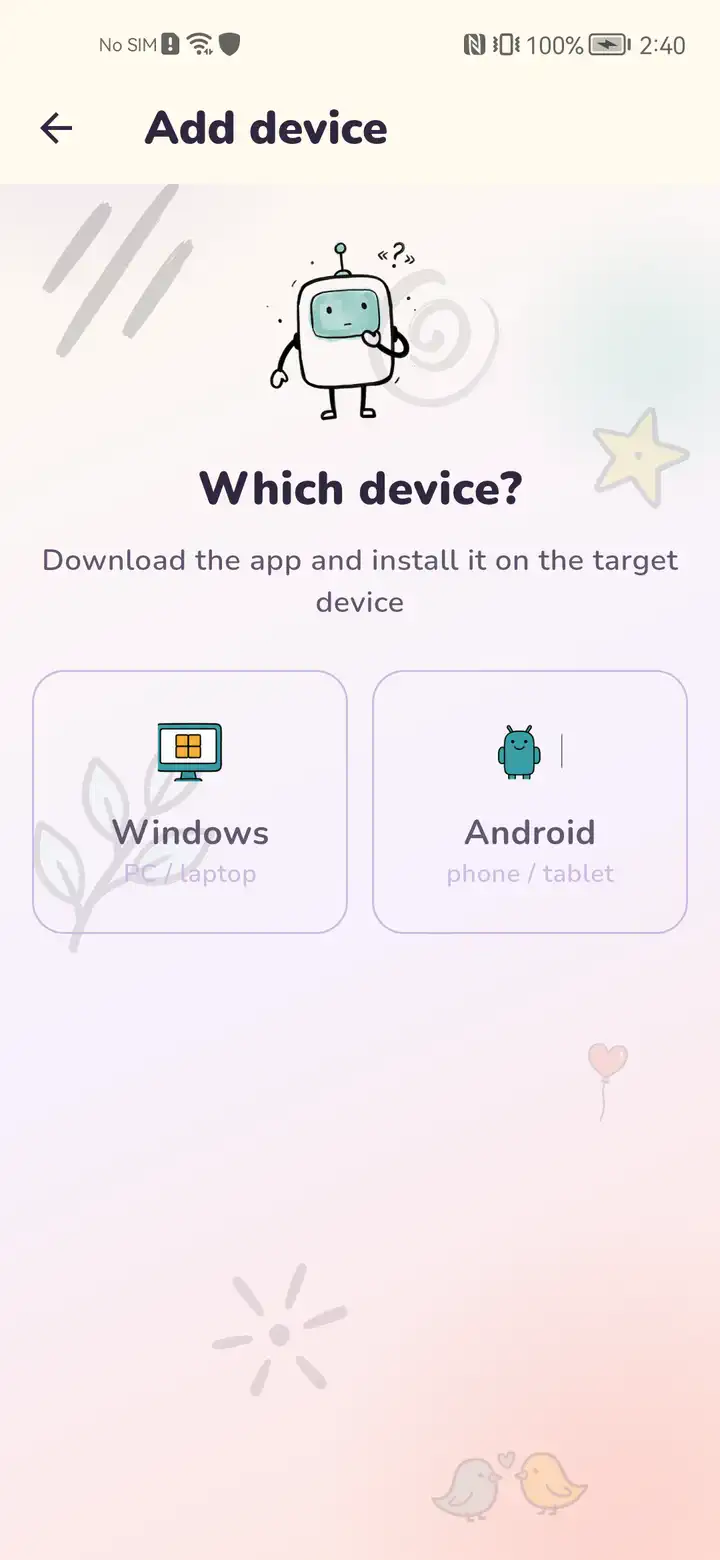
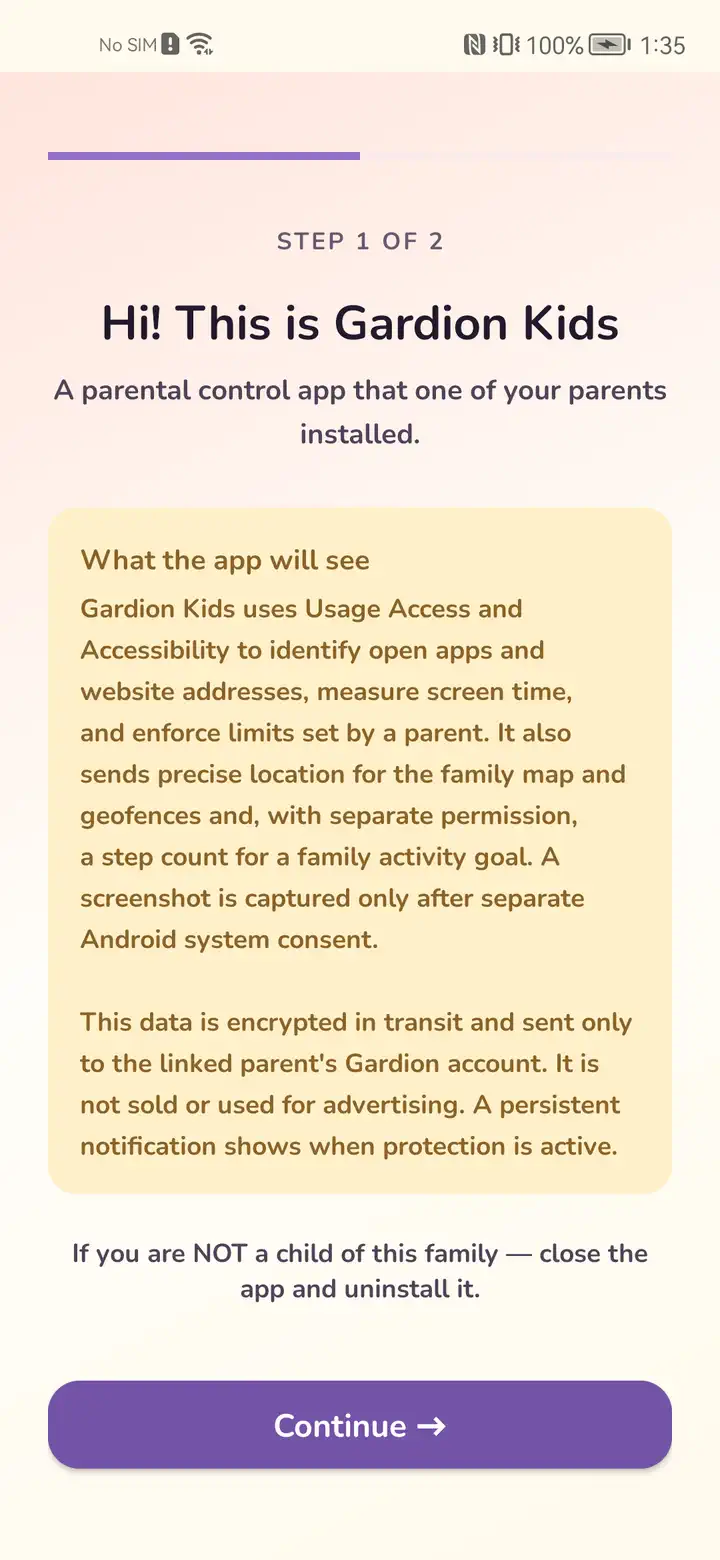
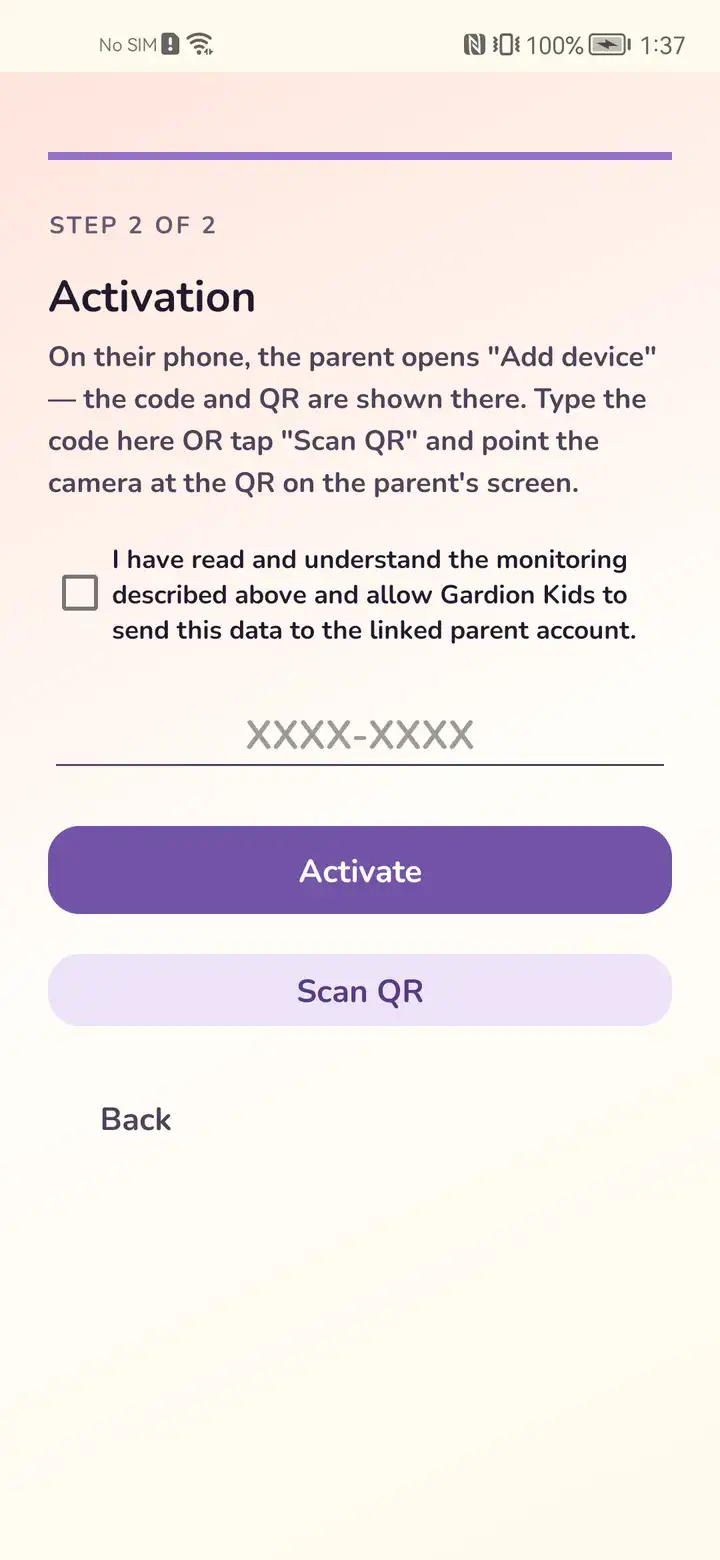
In Family, add the child and choose “Connect a device”. The app gives you a personal link: open it on the child’s phone, install Gardion Kids and enter the connection code. The link is personal because the child app is tied to your account from the start.
Enable permissions one at a time, with a clear purpose
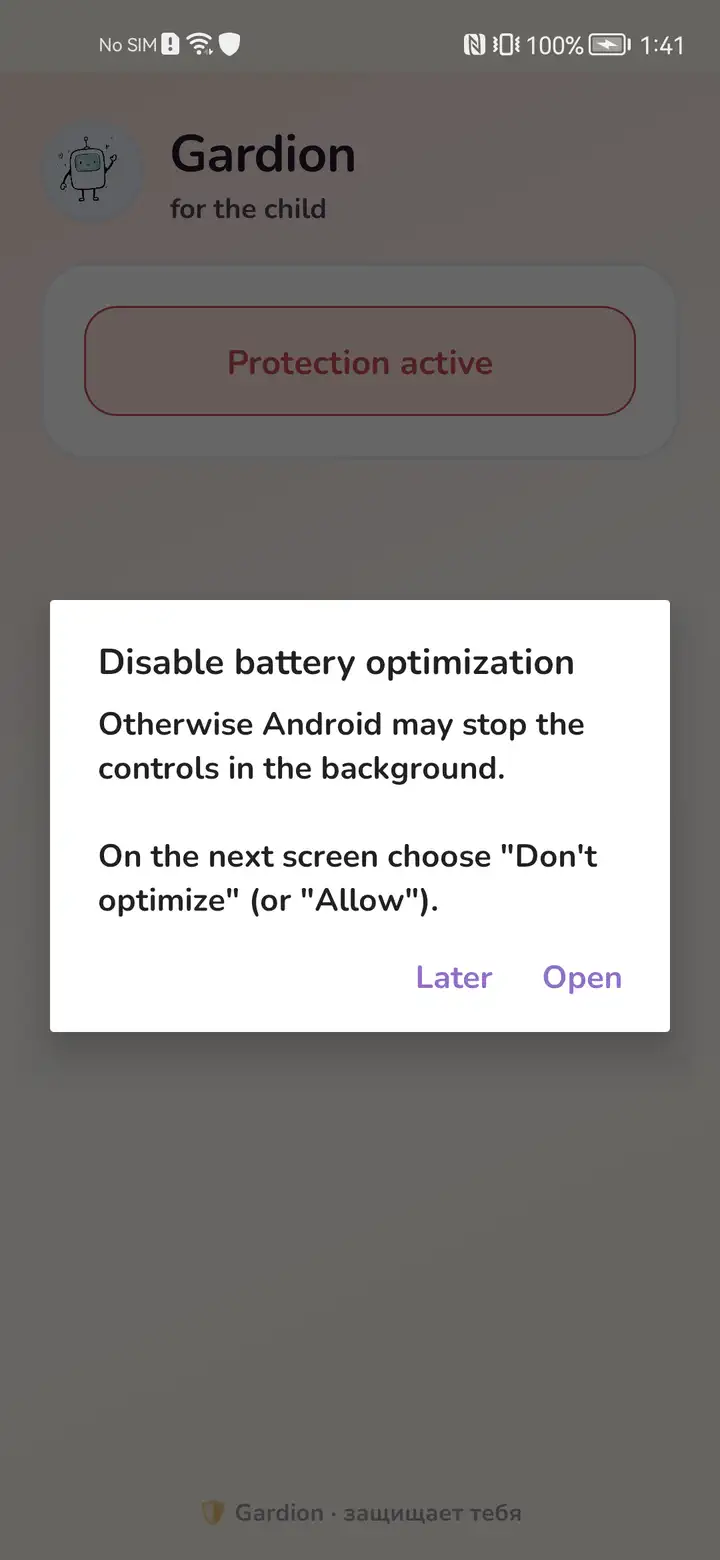
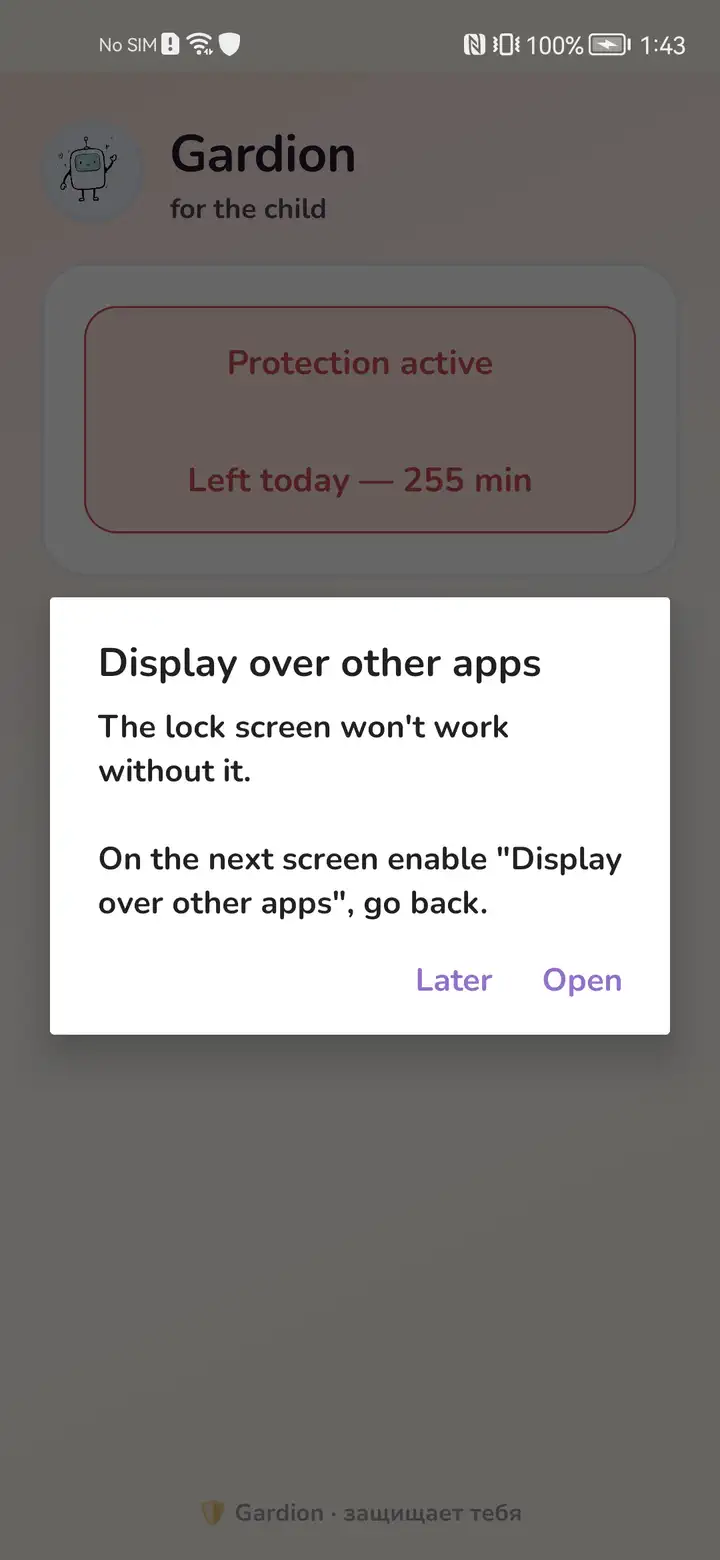
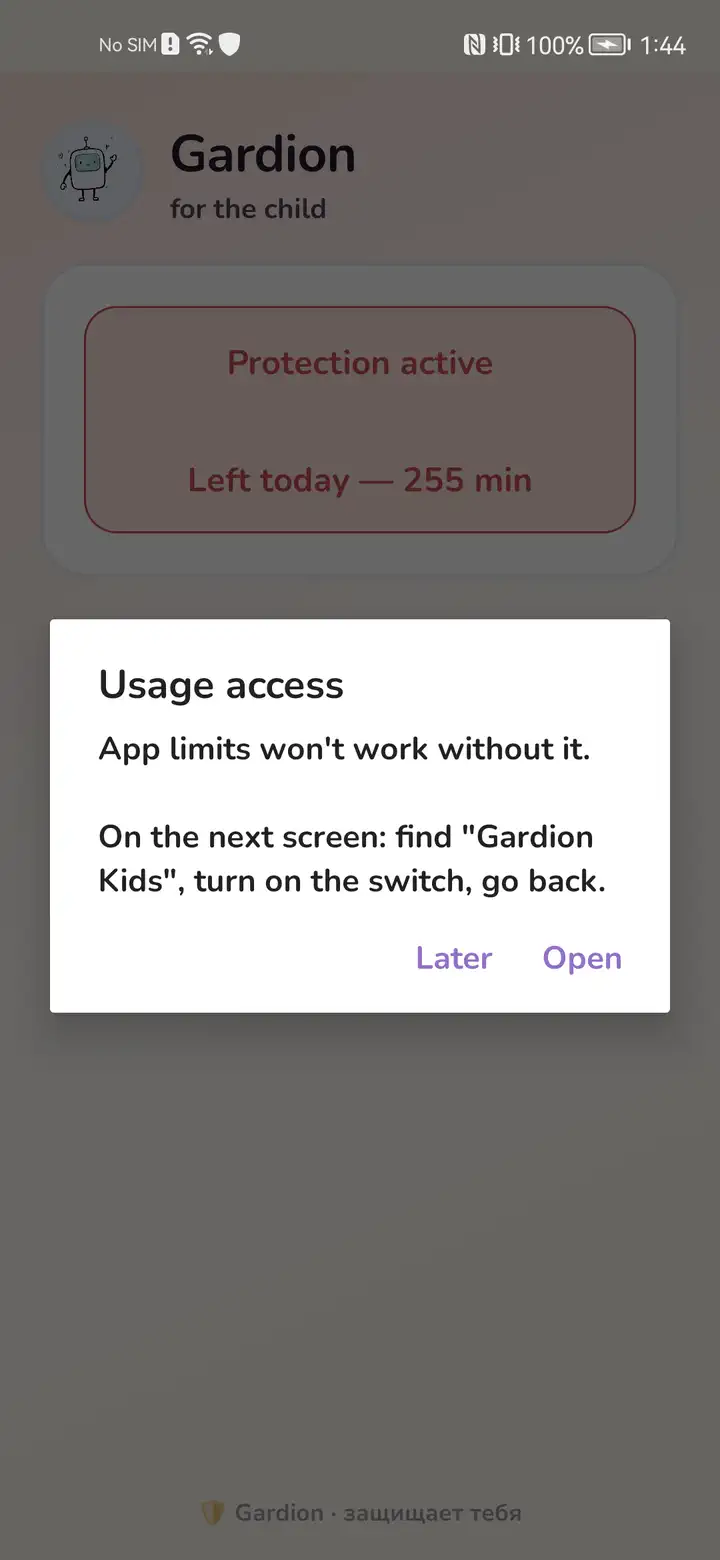
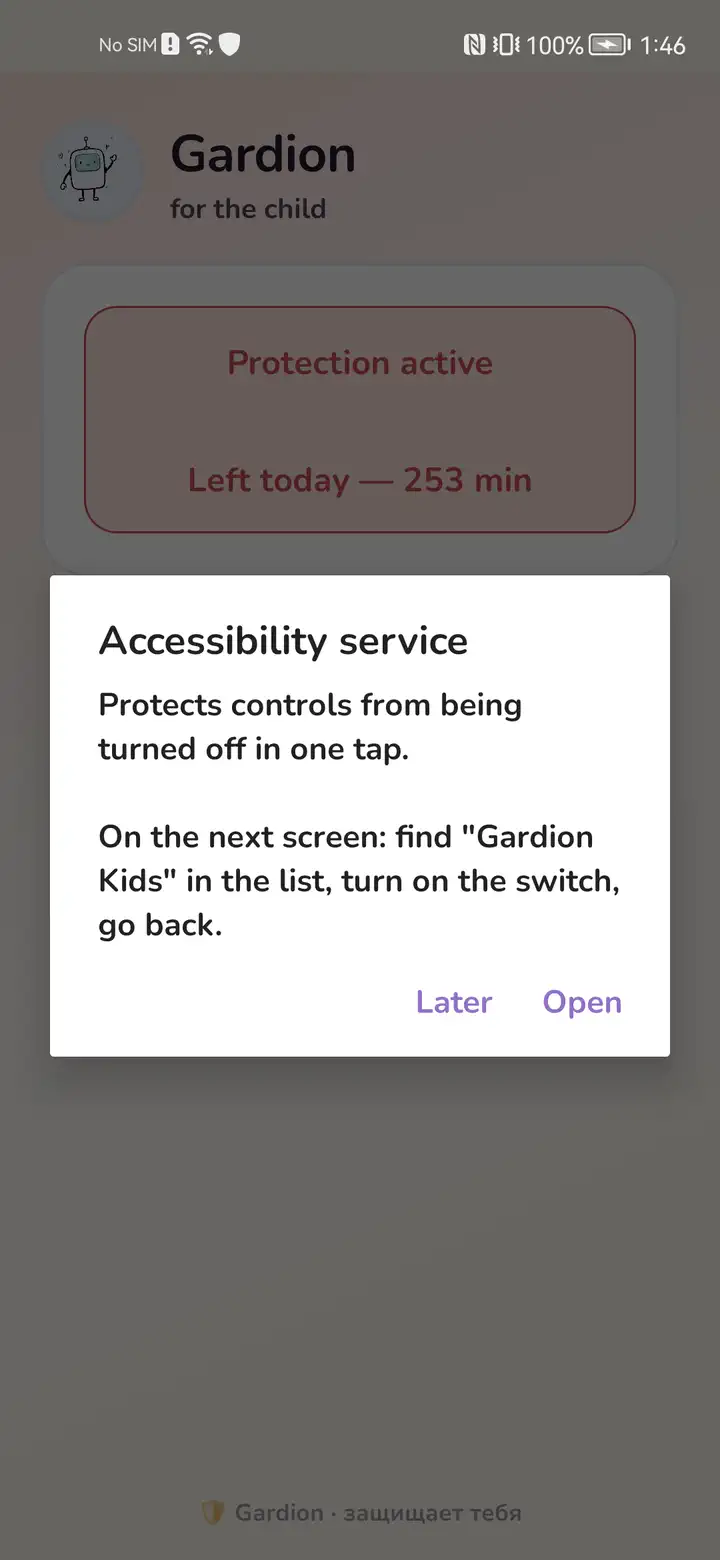
Gardion Kids explains every permission before opening Android settings. The first limit needs background operation, display over other apps, usage access and accessibility. Location and the VPN filter are optional and should be enabled only if you need those features.
When should I enable location, VPN and device administrator?
Location is for the map, safe zones and SOS. The local VPN is for website-category filtering. Device administrator helps protect Kids from accidental removal. None of these permissions is required just to test the first screen-time limit.
Create the first rule and check the result
Return to Family, set a daily limit or schedule and make sure it appears on the child’s device. For a calm check, start with a short test limit, then set the value that works for your family.
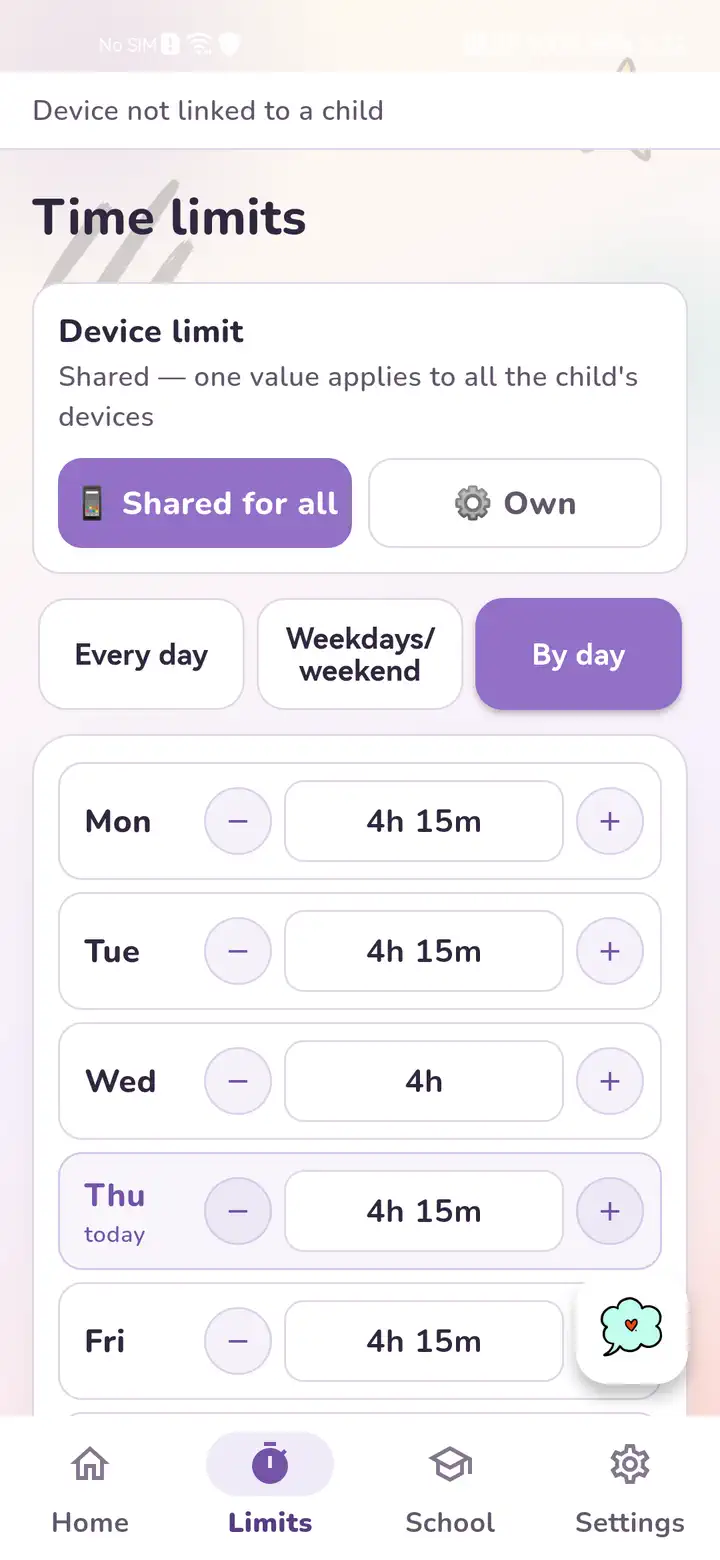
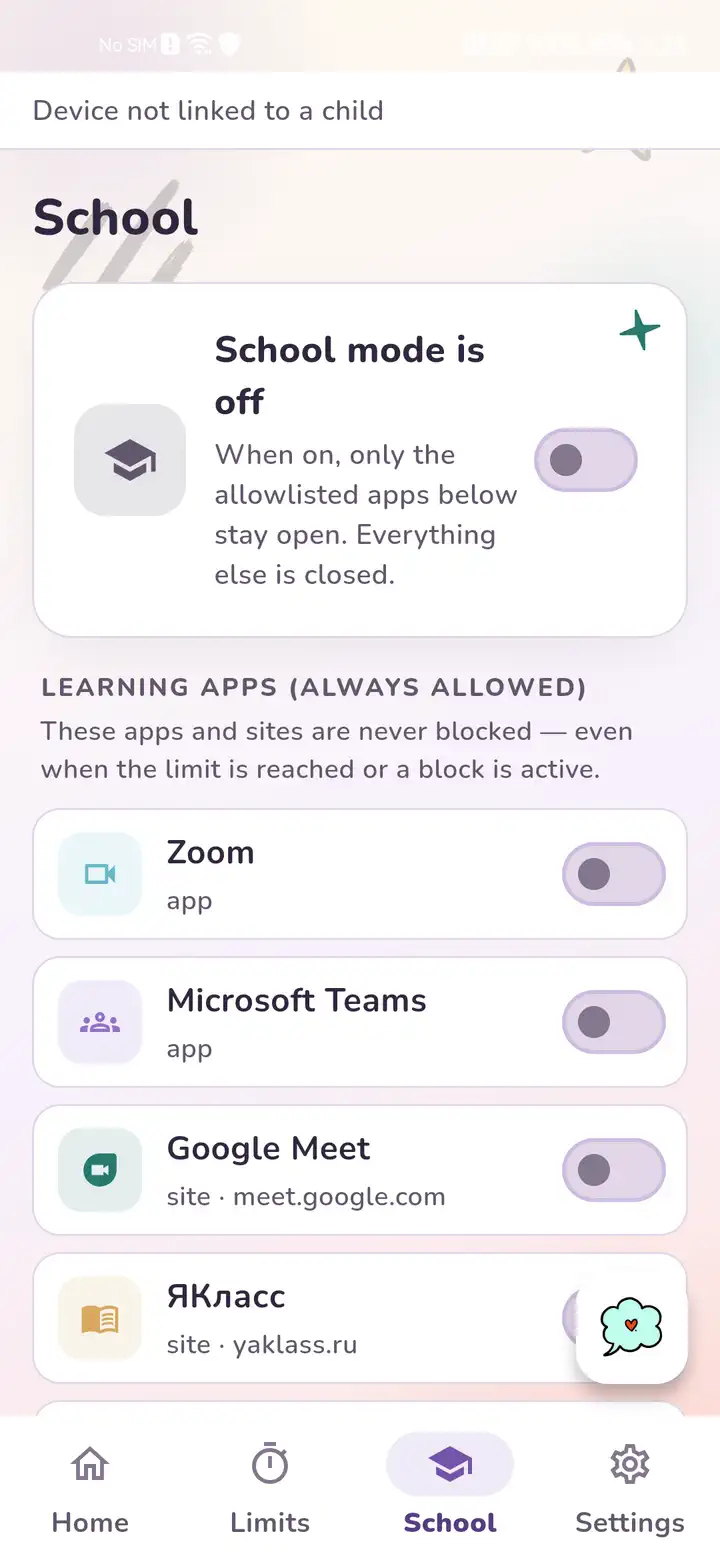
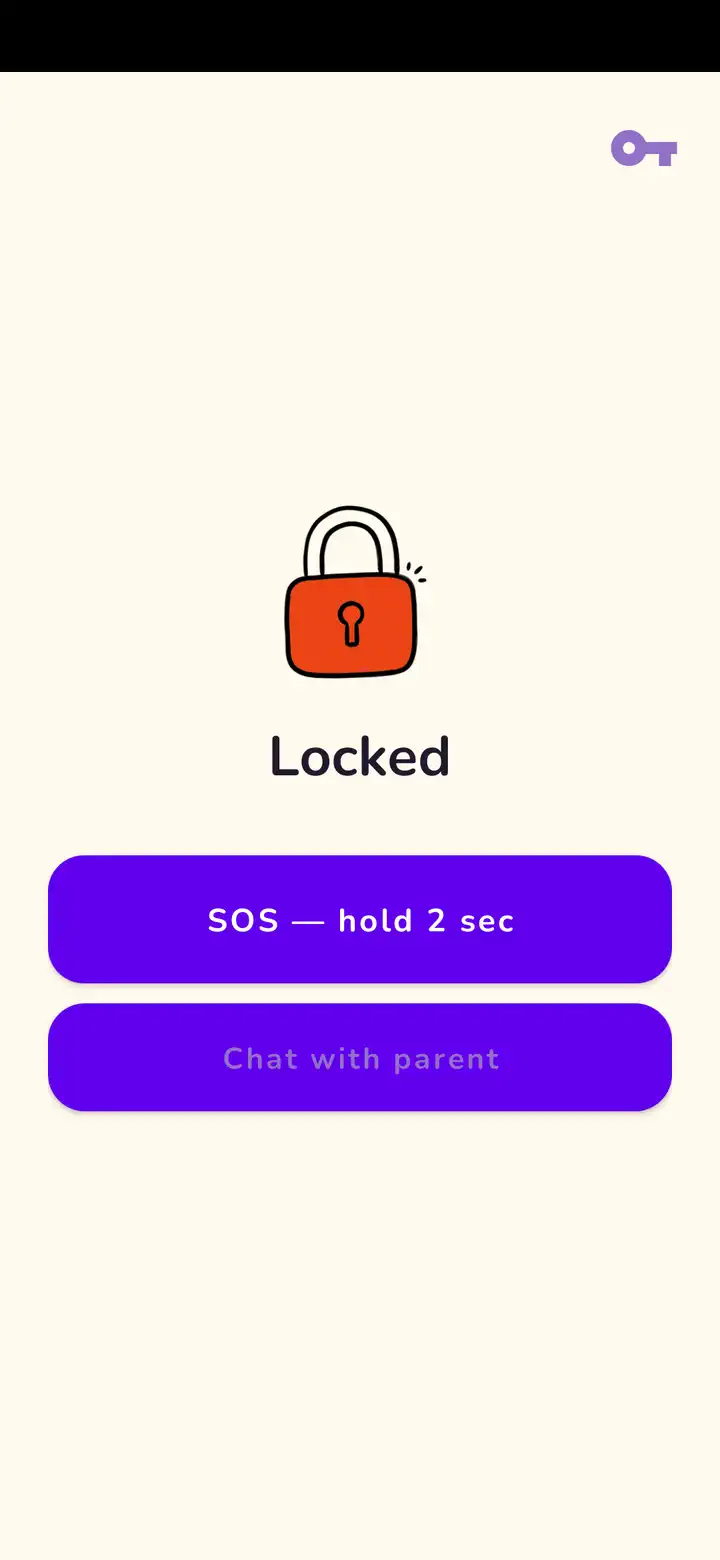
Then enable only the features your family needs
🎓 School mode — keep only the apps needed for school.
🤸 Breaks and warm-ups — remind your child to change position.
🌐 Web filter — enable categories of unwanted websites.
💻 To connect Windows, add the computer in Gardion Family: the app will create a personal one-time installer link.
Need help?
Tell us which step you reached and attach a screenshot — the Gardion team will help you continue.
app@gardion.io